Zorin OS Complete Guide: The Linux Distribution Built for Windows Users
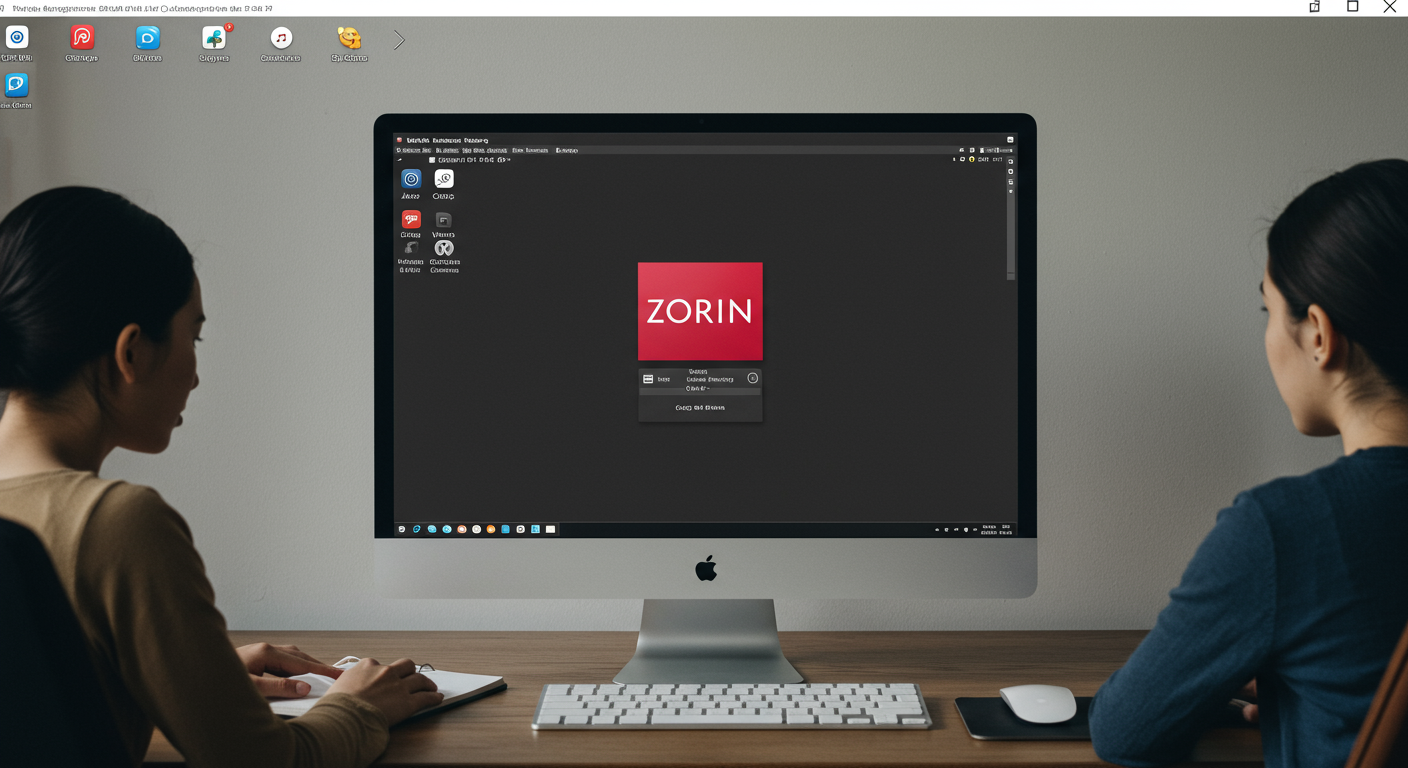
Zorin OS stands out as one of the most user-friendly Linux distributions available today, specifically designed to help Windows users make a smooth transition to the open-source world. With its familiar interface and extensive compatibility features, Zorin OS eliminates many of the barriers that traditionally make Linux intimidating for newcomers.
What is Zorin OS and Why Choose It?
Zorin OS is a Linux distribution built on Ubuntu's Long Term Support (LTS) foundation, providing users with a stable and well-supported operating system. What sets Zorin apart is its deliberate focus on creating an environment that feels familiar to Windows users while offering the security, performance, and freedom that Linux provides.
The distribution targets users who are curious about Linux but hesitant to leave their Windows comfort zone. Key advantages include a Windows-like interface out of the box, excellent hardware compatibility, and built-in tools for running Windows software. The Ubuntu LTS foundation ensures long-term stability and access to extensive software repositories.
Zorin OS Editions: Core vs Pro vs Education
Zorin offers three main editions to suit different needs and budgets:
Zorin OS Core is the free edition that includes all essential features for most users. It provides the standard desktop layouts, basic customization options, and access to the complete Ubuntu software ecosystem.
Zorin OS Pro is the premium edition that includes additional desktop layouts, advanced customization options, premium support, and exclusive applications. The Pro edition helps fund ongoing development and provides extra polish for users willing to invest in the experience.
Zorin OS Education focuses on educational institutions, including specialized software for schools, classroom management tools, and educational applications pre-installed.
For most users transitioning from Windows, Zorin OS Core provides everything needed to get started, while Pro offers enhanced customization for those wanting more options.
System Requirements and Hardware Compatibility
Zorin OS runs efficiently on both modern and older hardware. The minimum requirements include a 64-bit processor, 2GB of RAM, and 20GB of storage space. For optimal performance, 4GB of RAM and an SSD are recommended.
Hardware compatibility is generally excellent thanks to the Ubuntu foundation and active driver support. Most wireless adapters, graphics cards, and peripherals work out of the box. For NVIDIA graphics cards, proprietary drivers are easily installed through the system's additional drivers utility.
Zorin performs particularly well on older machines that struggle with modern Windows versions, often breathing new life into hardware that would otherwise be considered obsolete.
Installation Process Step-by-Step
Installing Zorin OS follows a straightforward process designed with beginners in mind. Start by downloading the ISO file from the official Zorin website and creating a bootable USB drive using tools like Rufus on Windows or Etcher on any platform.
Before installation, access your computer's BIOS or UEFI settings to ensure USB boot is enabled. For systems with Secure Boot, Zorin OS includes signed bootloaders for compatibility, though you may need to disable Secure Boot temporarily during installation.
The installation wizard guides you through disk partitioning, with options for installing alongside Windows in a dual-boot configuration or replacing the existing system entirely. The installer automatically handles most configuration details, making the process accessible even for Linux newcomers.
After installation, the system prompts you through initial setup including user account creation, timezone configuration, and basic system settings.
Desktop Environment and Interface Customization
Zorin's standout feature is the Zorin Appearance application, which allows users to quickly switch between different desktop layouts. The Windows-style layout mimics the familiar Windows interface with a taskbar, start menu, and system tray positioned at the bottom of the screen.
Additional layouts include macOS-style configurations with a dock and top menu bar, as well as traditional Linux desktop arrangements. Each layout can be further customized with different themes, icon sets, and color schemes.
The desktop environment supports extensive customization of the taskbar position, start menu behavior, and window management. Users can adjust animations, enable desktop effects, and modify the overall appearance to match their preferences.
Software Management and Application Installation
Zorin includes multiple methods for installing software, catering to users with different comfort levels. The Zorin Software Center provides a user-friendly graphical interface for browsing and installing applications, similar to an app store experience.
The system supports Snap packages and Flatpak applications, expanding software availability beyond traditional Ubuntu repositories. Advanced users can utilize APT package management through the terminal for more direct control over software installation.
Zorin comes pre-installed with essential applications including LibreOffice for productivity, Firefox for web browsing, and multimedia tools for entertainment. The Software Center makes it easy to find Linux alternatives to popular Windows applications.
Windows Software Compatibility
One of Zorin's key strengths is its integration with Wine, a compatibility layer that allows many Windows applications to run on Linux. Zorin includes Wine pre-configured and optimized for common Windows software.
PlayOnLinux provides a graphical interface for managing Windows applications through Wine, with automated installation scripts for popular programs. Success rates vary by application, with older and simpler programs generally working better than complex modern software.
For applications that don't work well with Wine, users can consider virtual machine solutions like VirtualBox or VMware, or maintain a dual-boot setup for accessing Windows when necessary.
Gaming on Zorin OS
Gaming on Zorin has improved dramatically with Steam's Proton compatibility layer, which allows many Windows games to run on Linux with minimal configuration. Steam installs easily through the Software Center and automatically handles Proton setup.
Native Linux games continue to grow in number, with major platforms like Steam, GOG, and itch.io offering Linux-compatible titles. Independent and open-source games are particularly well-represented on the platform.
For Windows-exclusive games, Wine gaming tools like Lutris provide specialized configurations and optimizations. Performance varies by title, but many popular games run well with proper setup.
Troubleshooting Common Issues
Common installation issues often relate to secure boot settings or graphics driver conflicts. Most boot problems can be resolved by disabling secure boot temporarily or using compatibility boot options.
Hardware driver issues typically involve wireless adapters or graphics cards. Zorin includes an Additional Drivers utility that automatically detects and offers proprietary drivers when needed. For persistent wireless issues, USB wireless adapters with better Linux support provide reliable alternatives.
Software compatibility problems usually require checking Wine compatibility databases or seeking alternative applications. The active Zorin community forums provide assistance for specific software challenges.
Tips for Windows Users Transitioning to Zorin OS
Windows users should expect some differences in keyboard shortcuts and file system organization. Linux uses forward slashes in file paths and organizes system files differently than Windows. The home directory replaces the concept of user folders, while system files reside in standardized locations.
Security models differ significantly, with Linux requiring explicit permission for system changes through password authentication. This approach enhances security but requires adjustment for users accustomed to Windows UAC prompts.
Data migration tools can help transfer files and settings from Windows installations. Creating regular backups becomes more important during the transition period as users adapt to new workflows and applications.
Learning resources include official Zorin documentation, Ubuntu community resources, and general Linux tutorials that apply to Ubuntu-based distributions.